Pixel Bead guide
How to Use Grid, Coordinates and Bead Codes
Display peg lines, row numbers, and color IDs on the canvas in both the converter preview and Create from Scratch.
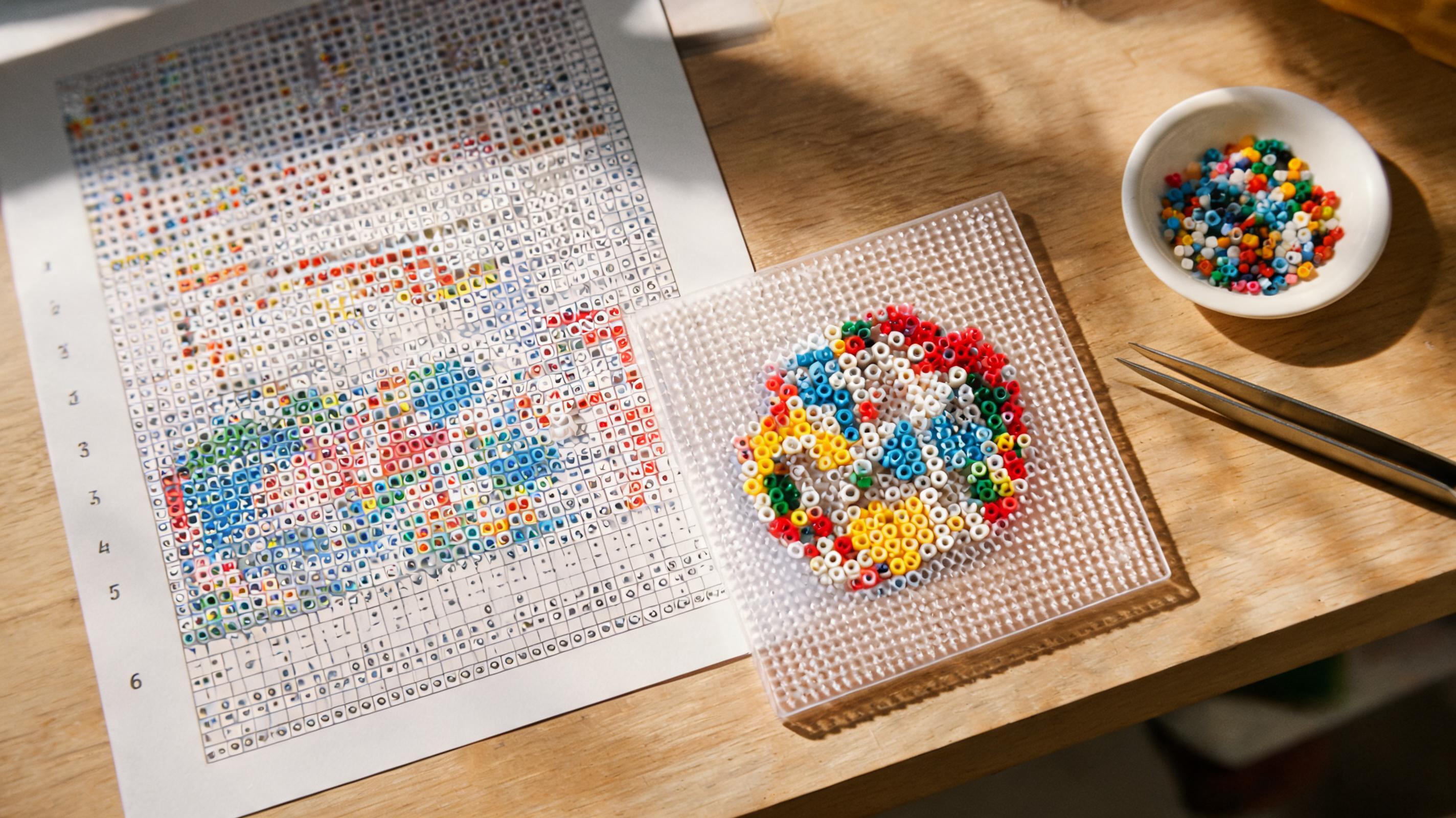
What It Changes
Three toggles — Grid, Coordinates, and Bead codes — change canvas overlays without editing the saved pattern. Grid draws peg lines. Coordinates show row and column numbers. Bead codes label each filled cell with its palette ID.
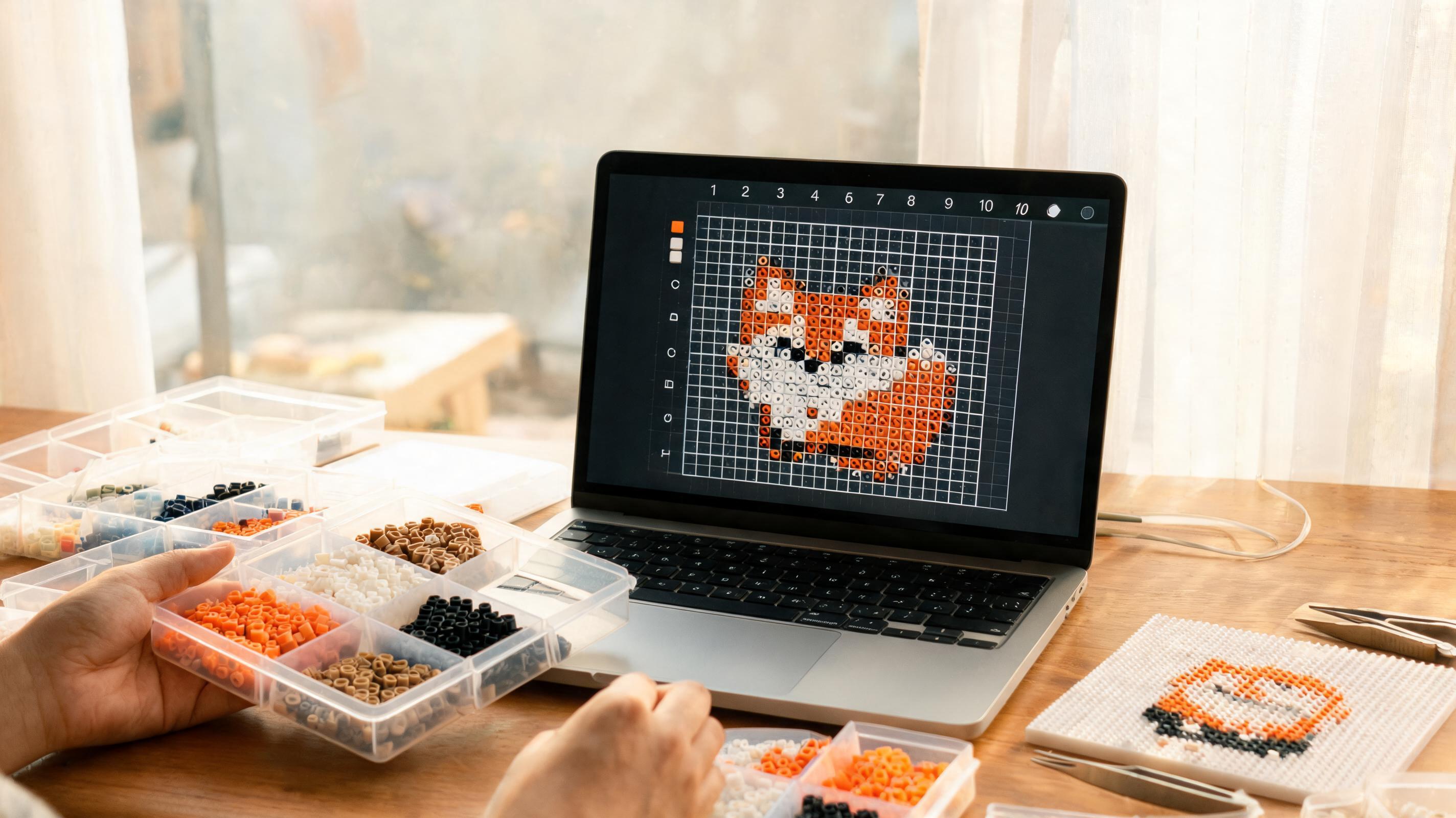
The same toggles appear in the converter preview header while you refine an auto-converted image.
When to Use It
- Grid — always helpful on large patterns; optional on tiny 16×16 tests.
- Coordinates — when you count rows aloud against a printed PDF at the table.
- Bead codes — while verifying placement or doing Replace color in the creator.
What Can Go Wrong
Bead codes on dense 87×87 grids can clutter the view — zoom in or toggle codes off for overview, on for detail work.
Recommended Starting Point
Grid on, codes off for composition passes. Turn codes on for final verification. Coordinates on only when you are actively counting rows.
What to Check in the Preview
Pick one 10×10 region, enable all three toggles, and confirm you can trace row 12, column 8 to a specific ID. If not, zoom in or widen the preview panel.