Pixel Bead guide
Image to Pixel Bead Pattern
Turn a photo into a bead-ready grid — from picking a source image to reviewing your material list.
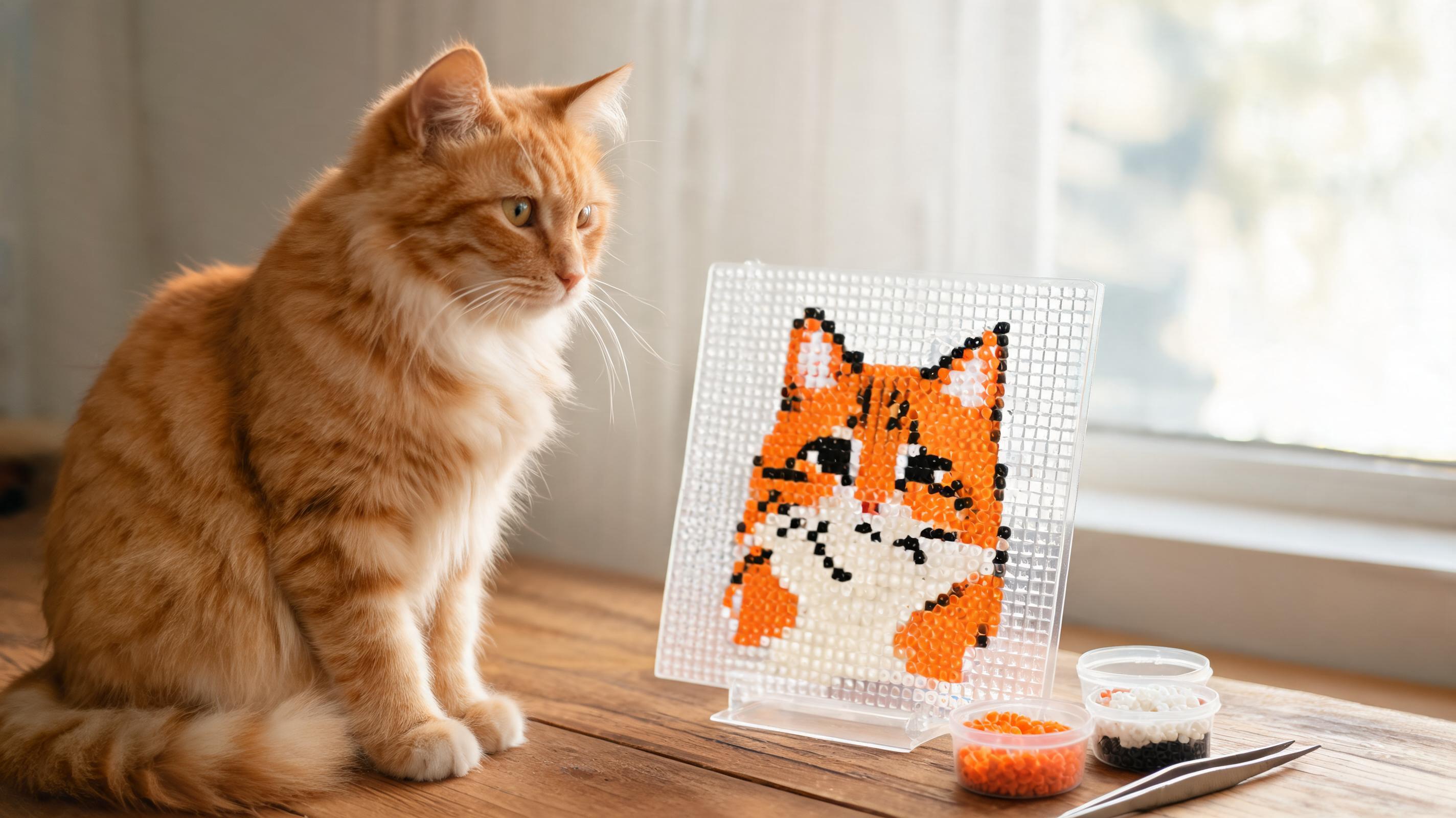
Choose a Clear Image
The converter works best with a single subject, even lighting, and strong contrast between the subject and background. Blurry phone shots and busy backgrounds produce noisy patterns with too many one-bead islands.
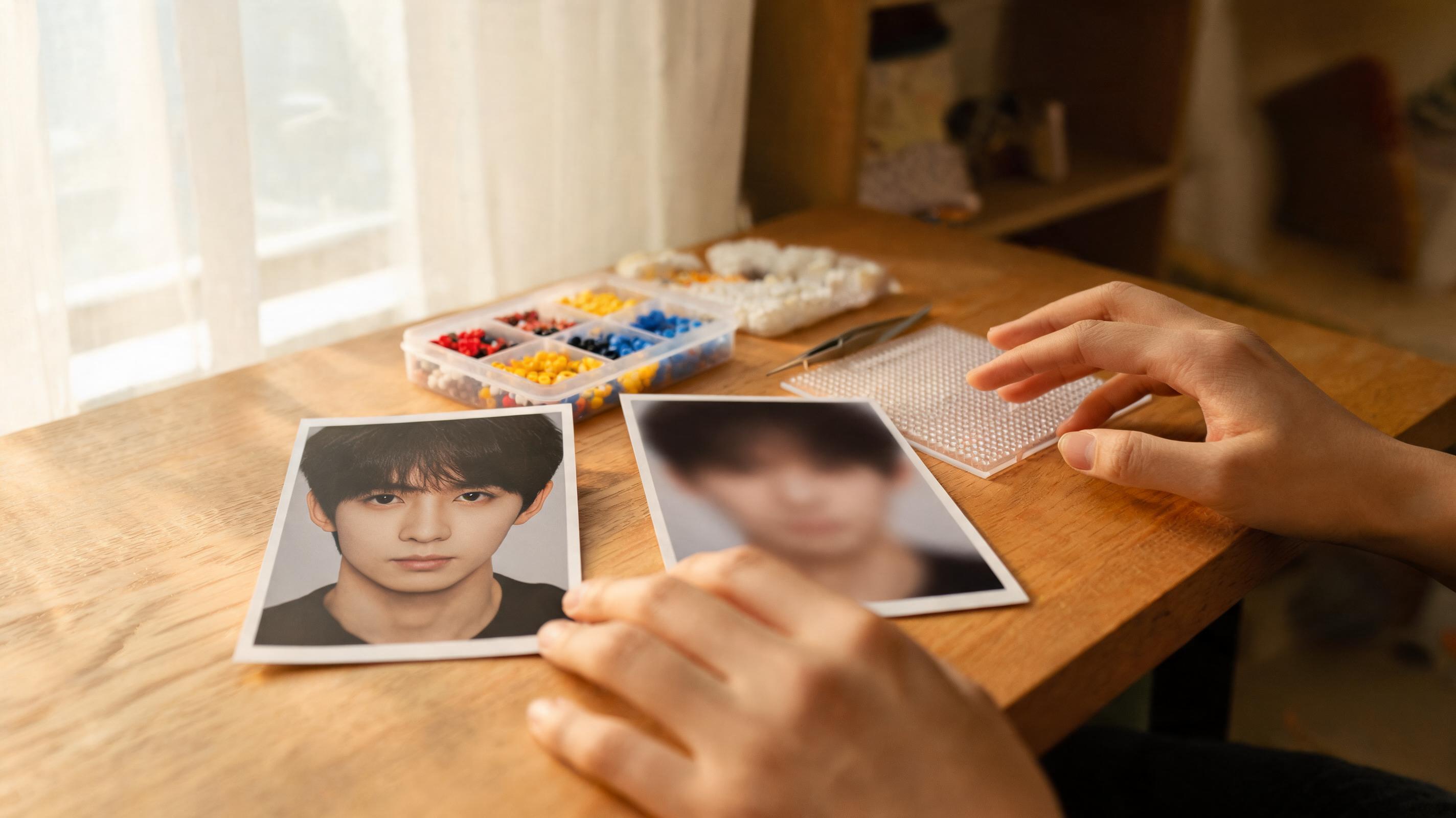
- Prefer PNG, JPG, or WebP under 10 MB.
- Portraits and simple icons convert more cleanly than detailed landscapes.
- If the background is messy, use background removal in More image settings after upload.
Set the Grid Size
Pattern size controls how much detail survives the conversion. Small (29×29) fits one standard board. Medium (58×58) covers four boards. Large (87×87) is for ambitious wall pieces. Custom dimensions let you match a specific board layout.
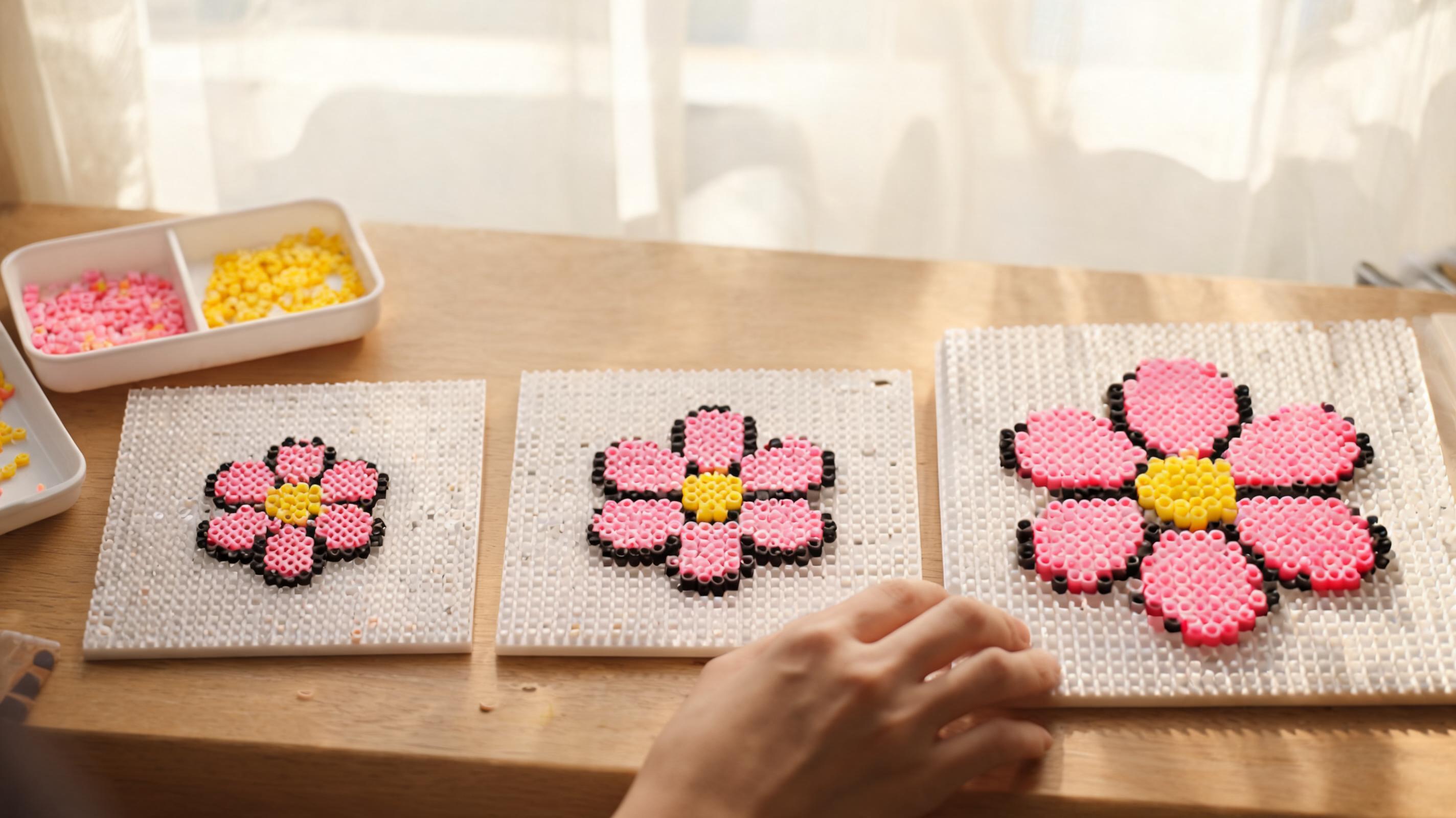
- Small · 29×29 — quick builds, fewer beads, less detail.
- Medium · 58×58 — good default for photos and portraits.
- Large · 87×87 — maximum detail; expect long build times and many colors.
- The cell counter warns you when a grid exceeds the app limit.
Reduce Noisy Colors
Real photos contain thousands of colors; bead palettes do not. The Detail level preset (Easy, Balanced, High fidelity) sets a recommended color cap. Easy keeps shopping lists short; High fidelity preserves subtle shading at the cost of more bead types.
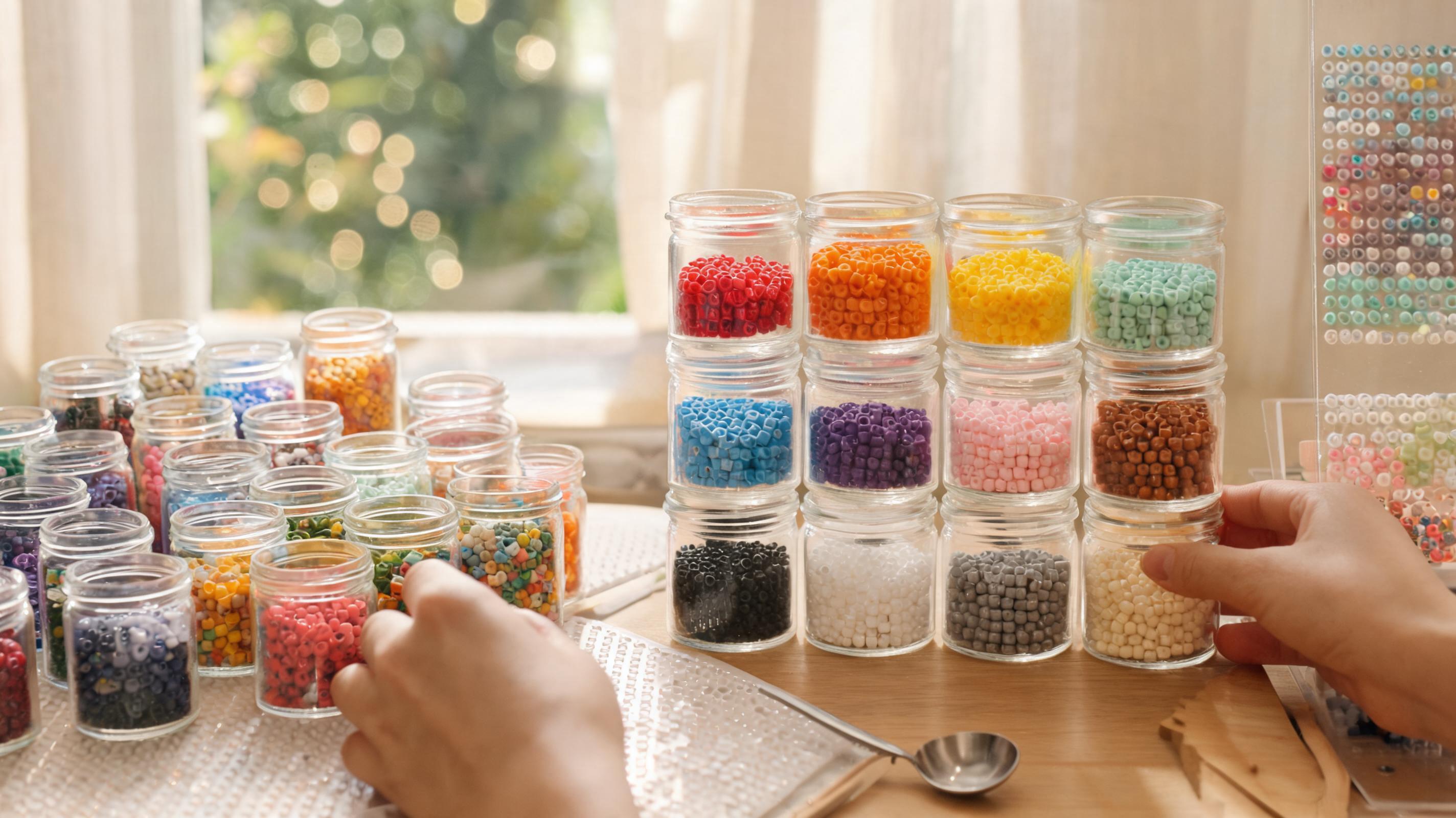
- Easy · fewer colors — best for first projects and kids' builds.
- Balanced — default for most photos.
- High fidelity — for experienced builders with large inventories.
- Enable Only use colors I own to force matches from your inventory.
After conversion, check Pattern cleanup in the download panel. It finds single-bead islands and offers to merge them into neighboring colors.
Review the Material List
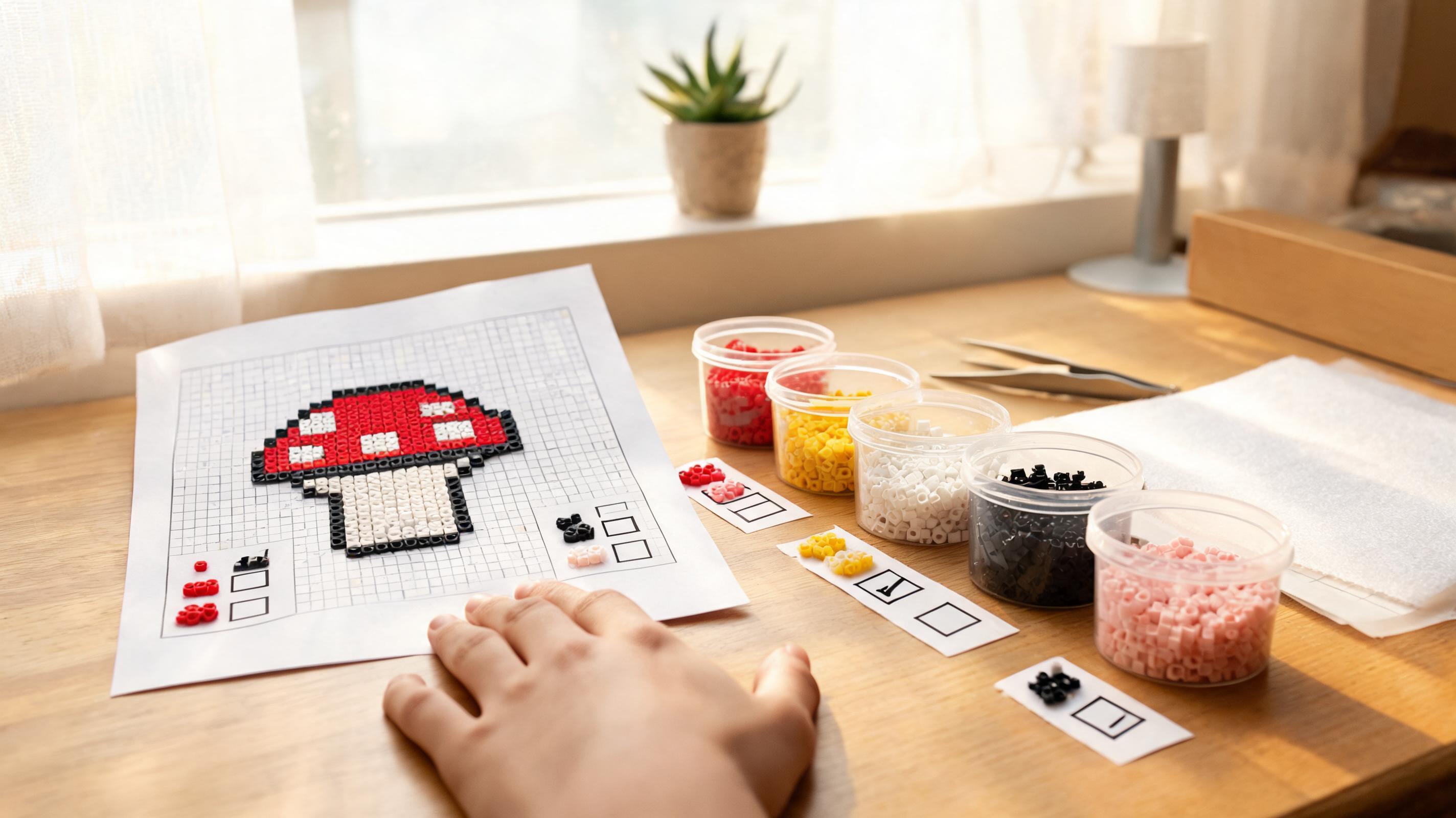
The Materials list in the right panel is your shopping and sorting guide. Each row shows the bead ID, color name, and exact count. Expand it before you buy beads or pour cups onto the table.
- Beads — total pegs filled in the pattern.
- Colors — distinct bead IDs used.
- Boards — how many 29×29 boards the grid spans.
- Download guide exports PNG and PDF with codes on every cell.