Pixel Bead guide
How to Reduce Too Many Colors
Shrink a noisy material list using Detail level, custom caps, cleanup, and inventory limits in the converter.
What It Changes
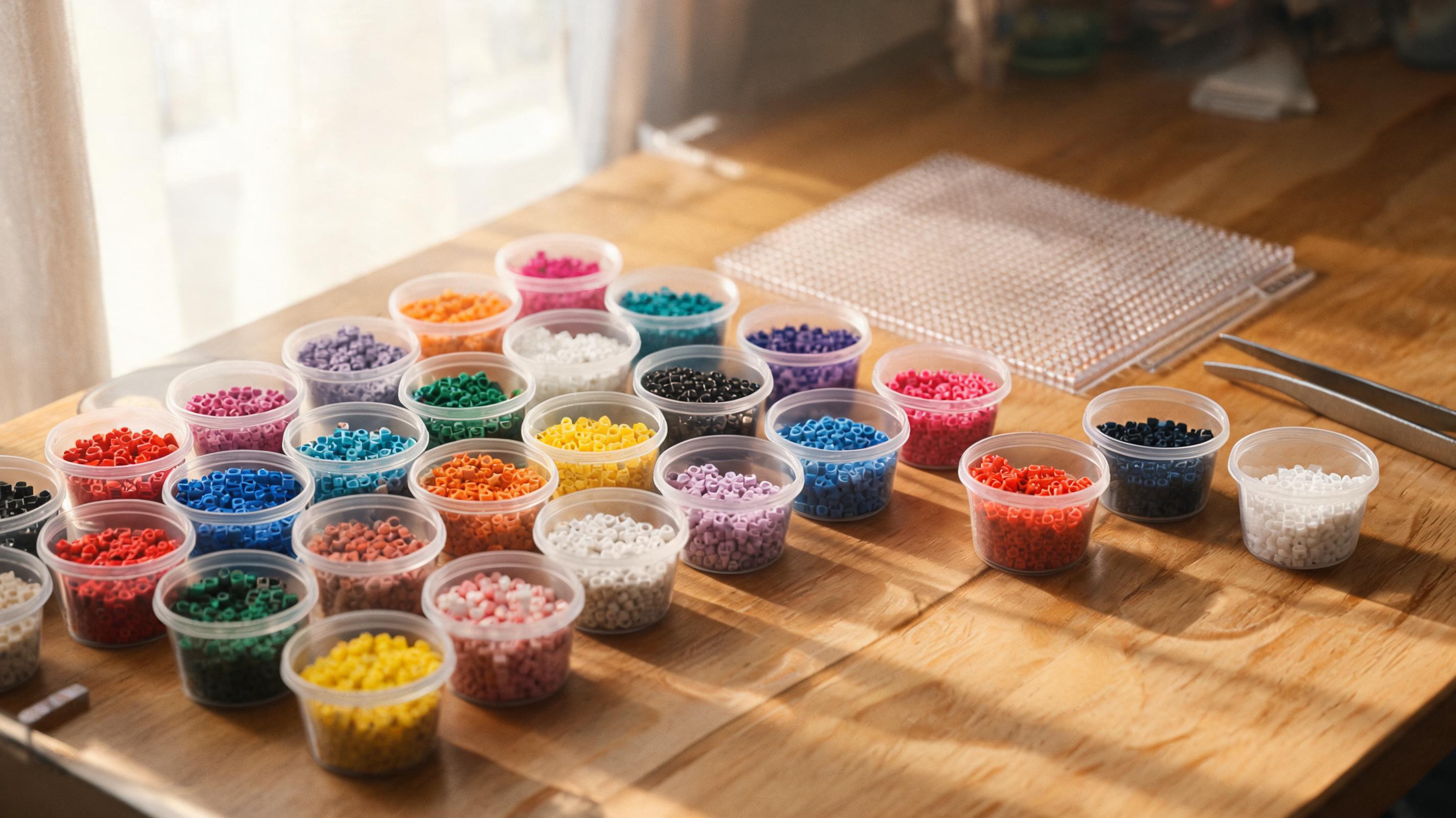
Color reduction merges similar source pixels into fewer bead IDs. Detail level (Easy, Balanced, High fidelity) sets a recommended cap. Use a custom maximum under More image settings to override. Only use colors I own forces matches from your inventory list.
When to Use It
- Materials shows more than 25 colors on a beginner project.
- Many rows appear with counts under 5 beads — merge candidates.
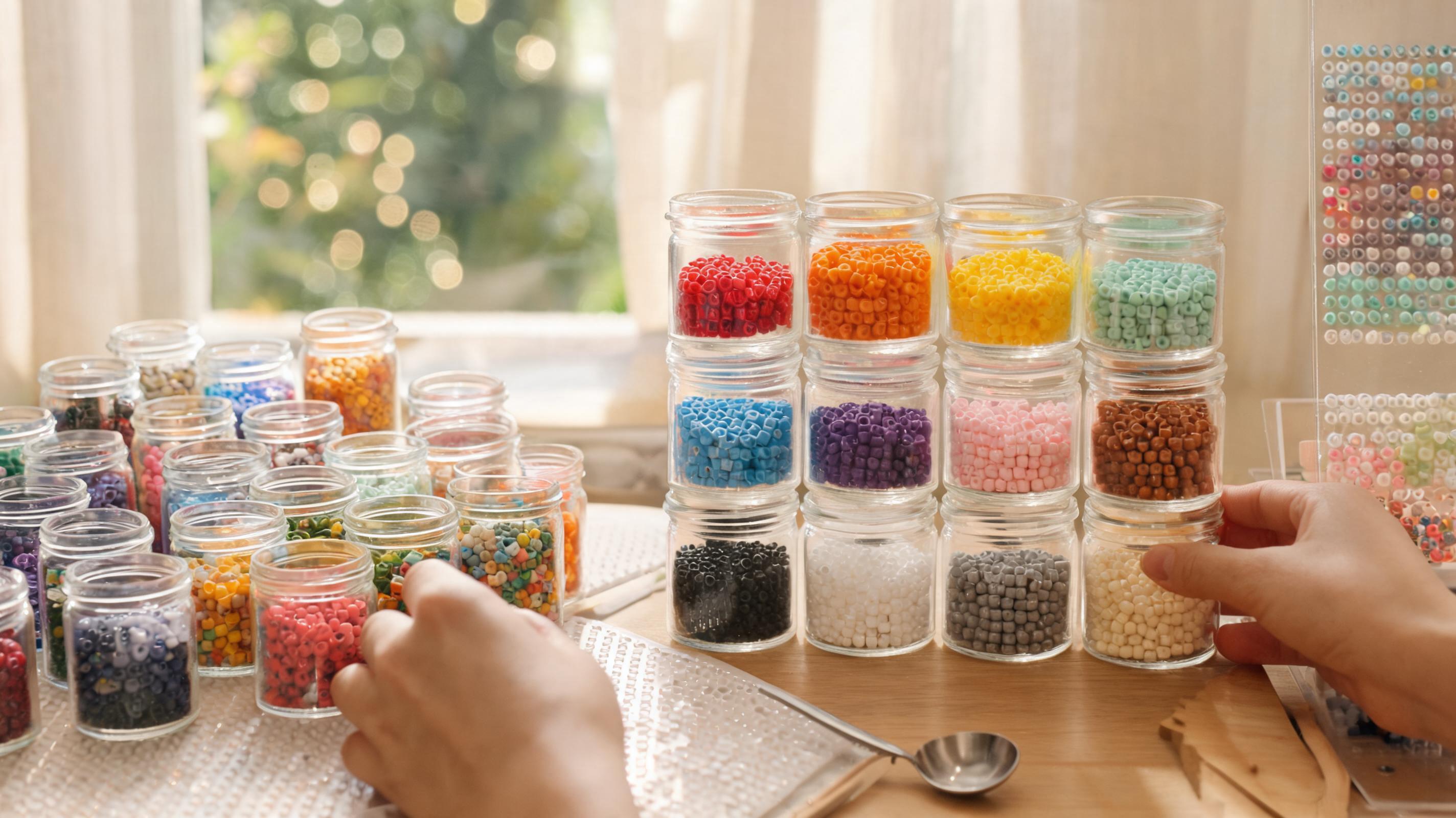
- You are sorting jars and keep finding one-off shades.
What Can Go Wrong
Over-reducing destroys shading — faces become flat and backgrounds posterized. Inventory-only mode can pick a poor substitute if you marked too few owned colors.
Recommended Starting Point
Balanced detail first. If still too many colors, enable custom maximum and step down by 4–6 at a time. Run Apply cleanup to merge single-bead islands after the count stabilizes.
What to Check in the Preview
Scan the Materials list sorted by amount. Eyeball the preview for posterized patches. Re-open Detail level if custom max alone is not enough.